Get a useful first draft from the work already in front of you.
Summarise a task, shape a brief or ask a question about your documentation. Review the suggestion, keep what helps and decide what happens next.
Get started free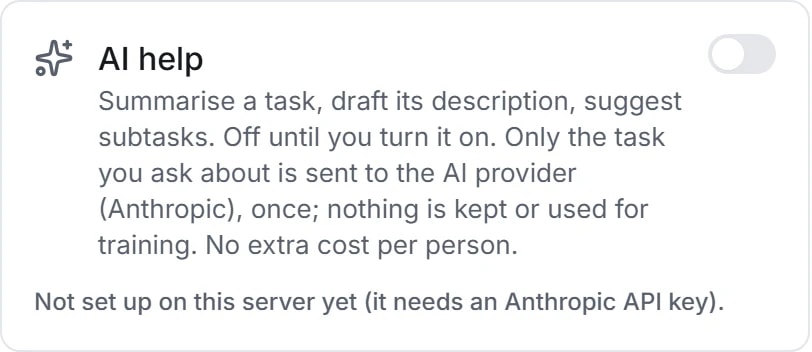
Practical help inside the work
Some days the difficult part is finding the thread again. Talqivo can condense a task's discussion, draft a description or turn a broad idea into suggested subtasks. The assistance sits near the relevant context, where you can compare the result with the source.
The details your team can work with
- Catch up without starting from scratch
- Request a task or project summary, condense a chat thread or prepare a stand-up from recent activity. Check the source material before sharing a summary with the team.
- Give the next draft some structure
- Draft task descriptions, rewrite text and suggest subtasks. Preview task suggestions and select the subtasks you want to add instead of accepting every proposed step.
- Ask questions where the knowledge lives
- Get help writing and summarising Docs, or ask about their contents. Cross-page answers can cite the pages used, making it easier to return to the underlying information.
- Keep workspace control visible
- AI is off by default and requires administrator activation and provider configuration. Check requests and token use against plan allowances; eligible plans support the workspace's own provider key.
Explore the details
- Optional activation and usage controls
- Administrators enable AI after provider setup, review requests and tokens against quotas and use their own key where the plan permits.
- Task drafts, summaries and subtasks
- Ask for a task description, summary or suggested subtasks, then compare the response with the source and select what to keep.
- Rewriting, tone, translation and editing
- Request a rewrite, tone adjustment or translation for supported text, then edit the draft to match the audience and intended meaning.
- Field summaries, sentiment and classification
- Use configured AI field actions to suggest a summary, sentiment or classification, reviewing the output alongside the task information it describes.
- Document writing and source questions
- Draft or summarise document content and ask questions about accessible pages, consulting the cited sources when available to check the answer.
- Workspace guidance and source references
- Ask the workspace assistant for help with available context and inspect its source references; the conversational assistant does not independently change workspace data.
- Chat catch ups and thread summaries
- Recover the main points from supported chat context or a long thread, then confirm decisions against the messages before sharing a summary.
- Standups, project updates and executive drafts
- Prepare available standup, project or executive summaries from the relevant activity, keeping the underlying work visible during the team's review.
- Whiteboard ideas and diagram drafts
- Request starting ideas or a supported diagram draft for a whiteboard, then adjust the result with the people planning the work.
- Automation drafts and configured AI actions
- Review a proposed automation rule or use AI within separately activated rules, with execution governed by their configured events and conditions.
- Clip summaries and time drafts
- Review assistance based on available clip transcripts or work activity, checking suggested actions and time entries before treating them as records.
- Saved prompts and custom commands
- Save useful prompts or add AI commands to the command palette so a repeated request has a consistent starting point.
Context first. A suggestion. Then your decision.
Use assistance for a defined piece of work and keep human review in the process, especially for decisions and information shared with others.
Enable the right setup
An administrator checks configuration, plan availability and workspace settings before switching assistance on.
Ask for a specific result
Open the relevant task or document and request a summary, a draft or an answer based on that context.
Review and apply
Check names, details and assumptions. Edit the draft or choose the suggestions you want to keep.
A practical example: pick up a project after a handover
A colleague opens a task with a long discussion, requests a summary and reads the source comments to confirm the decisions. They then draft a clearer description and add only the suggested subtasks that still need doing.
An example you can adapt to your own team.
Questions about AI assistance
Can the assistant change my workspace on its own?
The chat assistant provides guidance rather than changing the workspace. Task suggestions are reviewed before applying; separately configured automations follow the rules your team enables.
Is AI assistance available without limits?
Availability and allowances depend on the current plan and configuration. Workspace settings show usage, and administrators can manage activation and supported provider key options.
Make space for the work that matters.
Bring your next project into Talqivo. Start with a task, invite your team and build from there.
Get started free