Show the detail that a message misses.
Record your screen, camera or voice, share the explanation and keep the follow-up connected to the task.
Get started free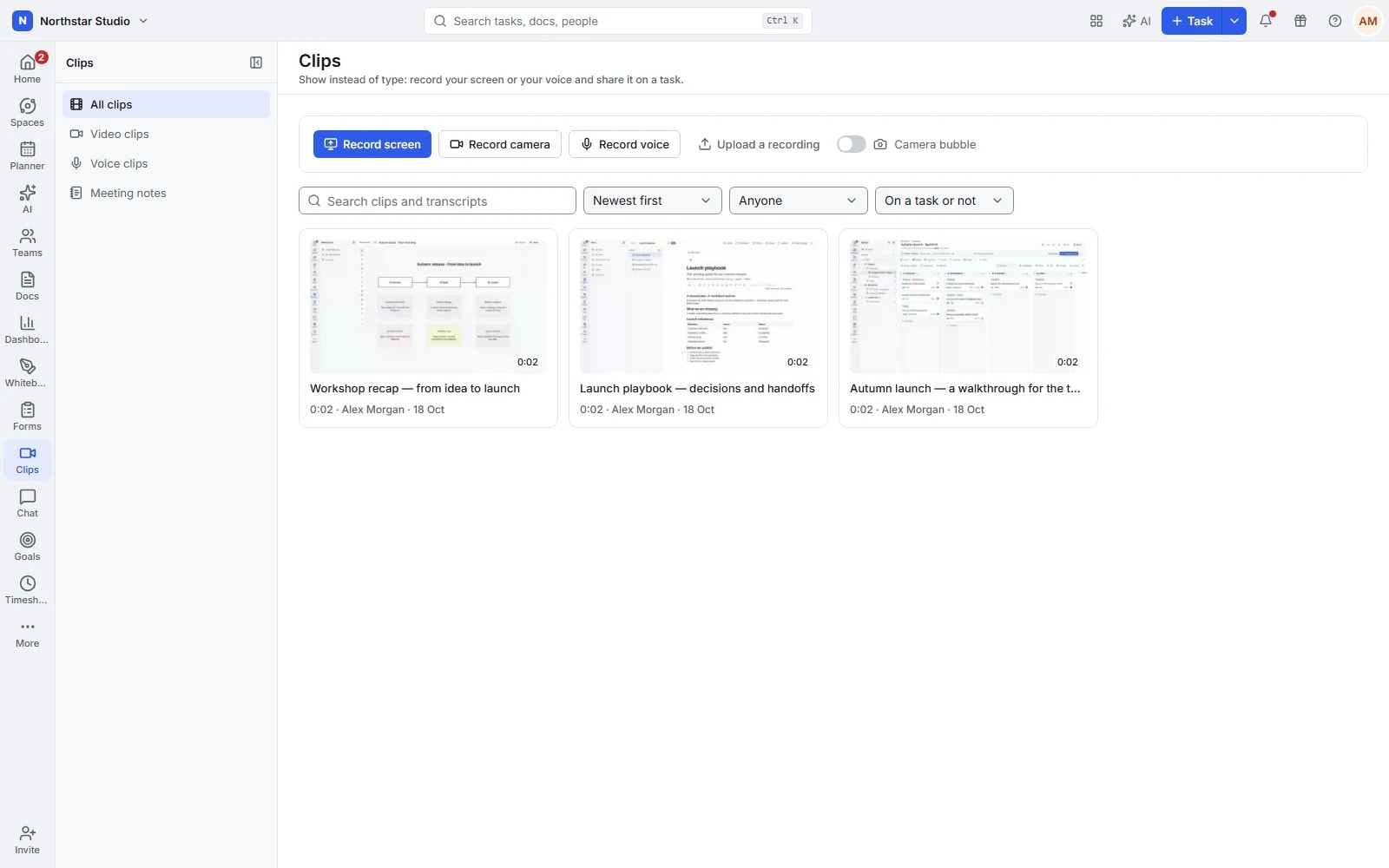
Give someone the walkthrough they can replay.
A bug, design review or handover can be hard to describe in writing. Record what you are looking at and explain it as you go. Colleagues can watch when they have time, return to a particular moment and ask questions with the same context in view.
The details your team can work with
- Choose how to explain it
- Record your screen, camera or voice in the browser, or upload an existing recording. Add a camera bubble to a screen walkthrough when seeing the speaker helps the explanation.
- Put feedback at the right moment
- Play recordings at a suitable speed and add comments to a point on the timeline. A reviewer can jump to the relevant moment instead of describing where to look.
- Share it with the work
- Attach a clip to a task, post a recording in a task comment or create a task from the clip. Enable a public viewing link when you need to share the recording beyond the workspace.
- Find the explanation again
- Search recordings by title and available transcript, then filter by author or task. When transcription is configured, read timestamped text, copy it or jump to the corresponding moment.
Explore the details
- Screen, camera and voice recording
- Record your screen, camera or voice in a compatible browser, using the capture permissions and inputs appropriate to the explanation.
- Uploads and recording library
- Upload an existing recording or keep a new clip in the workspace library so the team can find and reuse the explanation.
- Find and manage recordings
- Search recording titles and available transcripts, filter by useful details and organise the clips that belong to the team's current work.
- Task and chat sharing
- Associate a clip with a task or share it in a conversation, keeping the recorded explanation near the people and work concerned.
- Playback speed and download
- Adjust playback speed to suit the review and download an available recording when you need to use it outside the player.
- Comments at a moment and task creation
- Comment at a specific point in the recording and create a task when the explanation needs an owner and a next step.
- Public viewing links
- Enable a public viewing link for an appropriate clip when someone outside the workspace needs to watch the explanation.
- Configured transcripts, summaries and actions
- When transcription and AI services are configured, read timestamped text and review available summaries or suggested actions against the recording.
From a recorded problem to a clear follow-up
Make the explanation once, then give reviewers and the person doing the work a common reference.
Capture the detail
Record the relevant screen and explain the expected result. Pause when needed and give the saved clip a title people will recognise.
Share and review
Attach the clip to the work or share its viewing link. Ask reviewers to comment on the exact moment that needs attention.
Create the next action
Turn the recording into a task or connect it to an existing one. Keep the explanation available through review and handover.
A practical example: reporting a layout bug
A designer records the page at two window sizes and points out where the layout breaks. The clip becomes a task, and the developer leaves a timeline comment at the moment that needs clarification before making the fix.
An example you can adapt to your own team.
Questions about Clips
Can I upload a recording I already have?
Yes. Upload an existing recording, or record your screen, camera or voice directly in a supported browser.
Does every clip have a transcript?
Transcripts are available when transcription has been configured for the service. Once generated, timestamped lines can be read, copied and used to navigate the recording.
Make space for the work that matters.
Bring your next project into Talqivo. Start with a task, invite your team and build from there.
Get started free