Give the work a source of truth.
Write briefs, build a team wiki and record decisions in documents connected to the projects they explain.
Get started free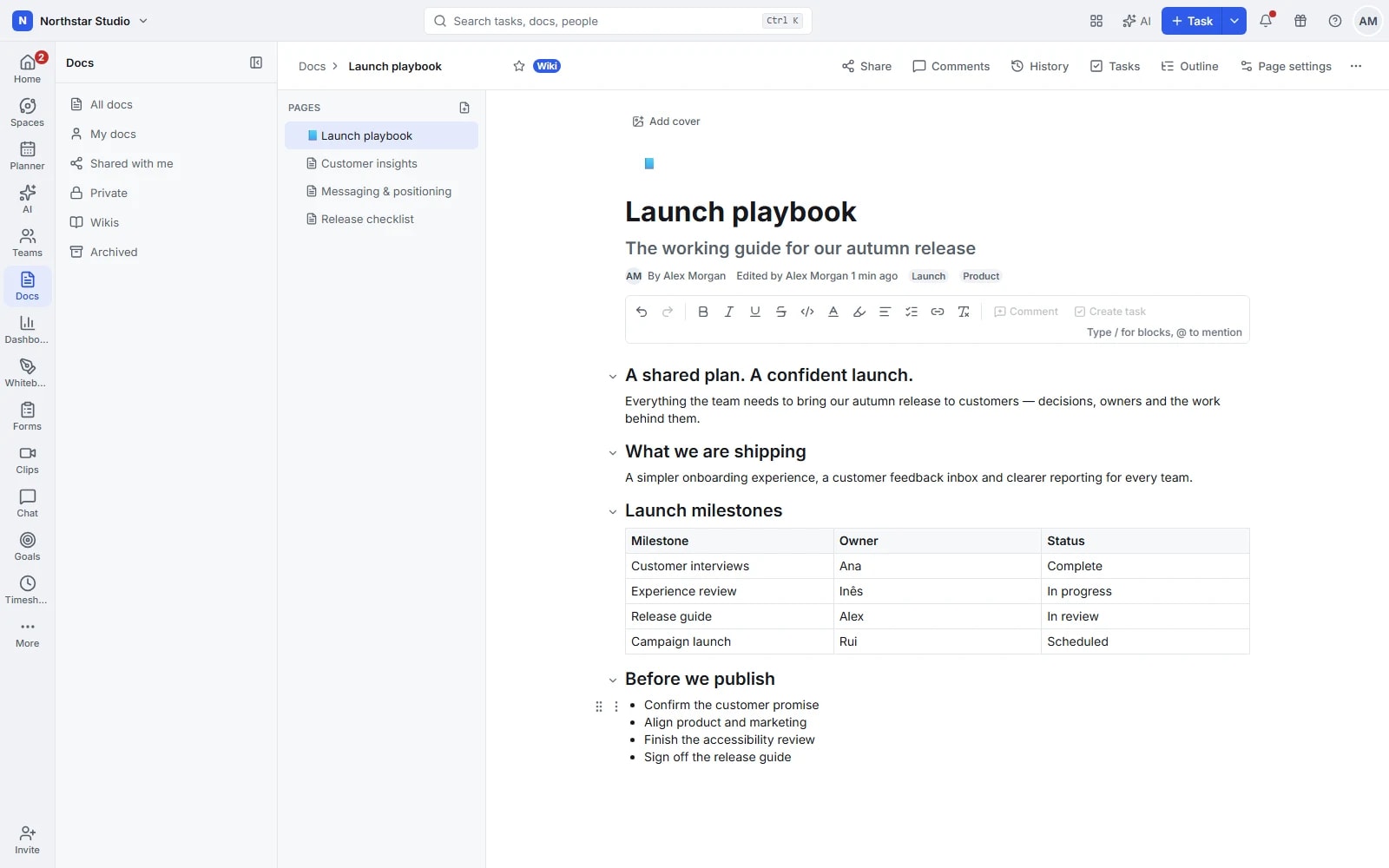
The thinking behind the task belongs here.
A task tells someone what to do. A good document explains why, how and what has already been decided. Keep both within reach: organise a project brief, technical specification or onboarding guide into pages your team can return to as the work develops.
The details your team can work with
- A structure that grows with the subject
- Create nested pages for a team handbook, project knowledge base or client brief. Give each topic its own place, without turning every document into one long page.
- Write with the people doing the work
- Edit together, see who is present and use blocks, tables and embedded content to explain the details. Keep discussion beside the passage it refers to.
- Make feedback actionable
- Assign and resolve comments, then turn follow-up into tasks. Link documents to tasks and lists so the brief remains available when someone starts the work.
- Keep a record, take a copy
- Review document history and versions when you need to understand a change. Import existing Markdown or Word files and export Markdown, HTML or PDF for a handover.
Explore the details
- Pages, subpages and team knowledge
- Organise a brief, project documentation or team wiki into pages and subpages so each subject has a clear place.
- Rich blocks and slash commands
- Add headings, lists, checklists, callouts and other supported blocks from the editor or slash menu as the explanation takes shape.
- Tables, columns, code and equations
- Compare information in tables, arrange content in columns and use code blocks or equations when plain paragraphs need more structure.
- Media, bookmarks and embeds
- Include images, supported media, bookmarks and embedded content alongside the text so readers can consult the references in context.
- Synced blocks and templates
- Reuse a document structure as a template or place a synced block on several pages to share one maintained explanation.
- Shared editing, presence and saved drafts
- Edit with colleagues, see who is present and keep pending document changes on the device until the server can save them.
- Anchored, assigned and resolved comments
- Discuss a specific passage, assign a question to the person who can answer it and resolve the thread after review.
- Task and project connections
- Associate documents with tasks, spaces, folders and lists so people can reach the supporting context from the work itself.
- Version history and restoration
- Consult earlier versions and editing contributions, compare the change and restore a previous version when the document needs to go back.
- Document access and public pages
- Control who can edit a document, protect content and publish an appropriate document or individual page through a public link.
- Markdown, Word, HTML and PDF
- Import Markdown, HTML or Word material and export Markdown, HTML or PDF, choosing the supported format for reuse or delivery.
- Optional writing and knowledge assistance
- When AI is enabled and configured, draft or summarise text and ask questions whose answers can point to the source pages.
From a first draft to an agreed brief
Use one document through preparation, review and delivery, with a clear place for the decisions made along the way.
Set out the brief
Describe the problem, scope and expected result. Add supporting pages for research, requirements or meeting notes.
Review the details together
Invite colleagues to edit and comment. Assign questions to the people who can answer them, then resolve each discussion.
Connect it to delivery
Create the agreed tasks and link the relevant pages. Update the document as the project develops.
A practical example: a website redesign
Keep the positioning brief on the main page, research on a subpage and content requirements in a table. Designers and writers discuss specific passages; approved changes become tasks with the original context still close by.
An example you can adapt to your own team.
Questions about Docs
Can Docs work as a team wiki?
Yes. Nested pages let you organise policies, processes and project knowledge by topic. Collaborative editing and document history help the team keep that material current.
Can a comment become a task?
Yes. Turn a document comment into a task when feedback needs follow-up, and connect documents to the tasks or lists they support.
Make space for the work that matters.
Bring your next project into Talqivo. Start with a task, invite your team and build from there.
Get started free