Keep routine handovers moving
Set rules for the moments your team repeats: a request arrives, a status changes, a deadline approaches or a sprint begins.
Get started free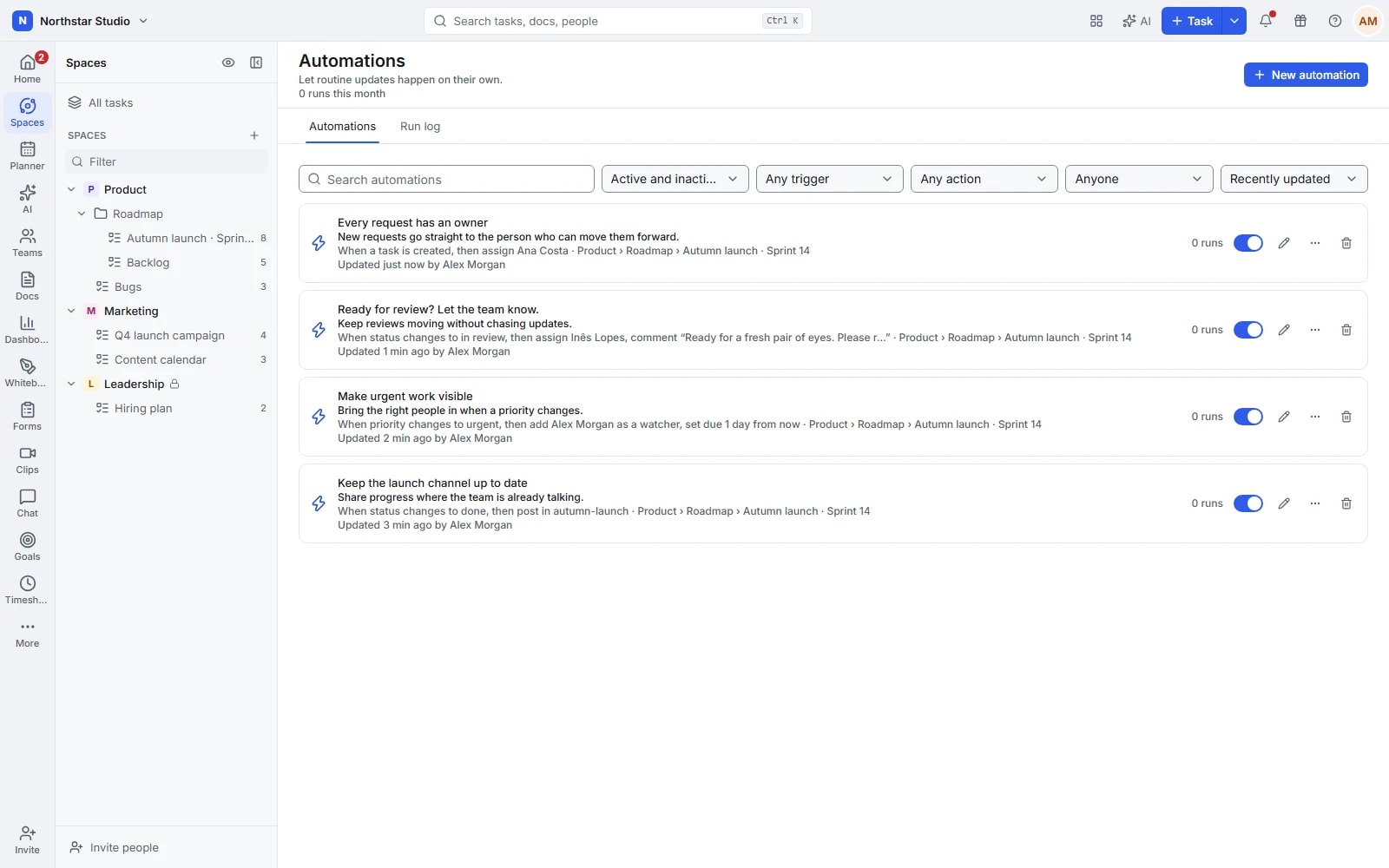
Agree the rule once, then follow what it does
The repeated follow-up often takes longer than the update itself. Talqivo automations connect a trigger to conditions and a sequence of actions: assign a new request, prepare a review or bring attention to an approaching deadline. Keep the rule scoped to the right work and inspect its execution in the run log.
The details your team can work with
- Start at the right moment
- React to task creation, status or field changes, form submissions and sprint events. Use date-based or scheduled triggers for work that needs attention at a particular time.
- Be selective about what runs
- Add conditions for details such as priority, assignee, status or a custom field. A rule can apply to the urgent request without applying to everything else in the list.
- Connect the follow-up steps
- Combine ordered actions to assign people, change dates, update fields, create subtasks or move work. Send a comment, chat message, email or webhook when the handover needs a clear signal.
- Keep the behaviour visible
- Start from a template or build your own rule. Run it manually on a relevant task, inspect successes and failures, and check usage against your workspace's plan allowance.
Explore the details
- Rule builder and automation templates
- Start from an available automation template or build a rule by choosing the event, conditions and actions that fit your process.
- Task, form and sprint events
- React to supported task changes, submitted forms and sprint events so a handover begins when the relevant work actually changes.
- Dates and scheduled events
- Use supported start or due date events and recurring schedules when a process needs attention at a particular time.
- Conditions and custom field rules
- Limit a rule by status, owner, priority or compatible custom fields so a specific exception does not affect every task.
- Ordered task and checklist actions
- Arrange supported updates, assignments, subtasks and checklist actions in the order needed to prepare the next stage of work.
- Location, relationship and sharing actions
- Use supported actions to move work, adjust relationships or change sharing when the process requires more than a field update.
- Chat, email and webhook actions
- Send a configured message, email or webhook after the relevant event, giving people or connected systems the signal they need.
- Optional rule drafts and AI actions
- When AI is enabled and configured, review a suggested rule or add supported AI actions within the team's activated process.
- Manual runs, history and diagnostics
- Try a rule on a suitable task and inspect successful actions or failures in its execution history before expanding its use.
- Usage limits and loop protection
- Review automation consumption against the workspace plan and use the engine's execution protections when rules can cause further events.
Turn one repeated process into a rule
Start with a handover the team already understands. Make its trigger, exceptions and expected result explicit before expanding it.
Name the moment
Choose a work location and the event that starts the rule, such as a form submission or a move into review.
Define the follow-up
Add conditions to narrow the scope, then arrange the actions in the order the process requires. Use a template as a starting point.
Check the result
Try the rule on a relevant task and review the run log. Adjust the conditions if the outcome needs to be more specific.
A request that arrives ready for triage
An operations form creates a task in the requests list. An automation checks its category, assigns the person responsible, sets a follow-up date and posts a message to the team channel. The request has a next step, and the run log shows what the rule did.
An example you can adapt to your own team.
Questions about Automations
Can one rule perform several actions?
Yes. A rule can contain multiple actions in a defined order, such as assigning the task, setting a due date and adding a comment. Conditions decide when that sequence should apply.
How can I see why an automation did not work?
The run log records outcomes and failures. Filter the runs to investigate the affected rule, then check its location, conditions and configured actions. Workspace usage and plan allowances are also visible.
Make space for the work that matters.
Bring your next project into Talqivo. Start with a task, invite your team and build from there.
Get started free