See the state of the work. Find the reason behind it.
Bring progress, workload, deadlines and time into one view. Follow a number back to the tasks behind it, then decide what needs attention.
Get started free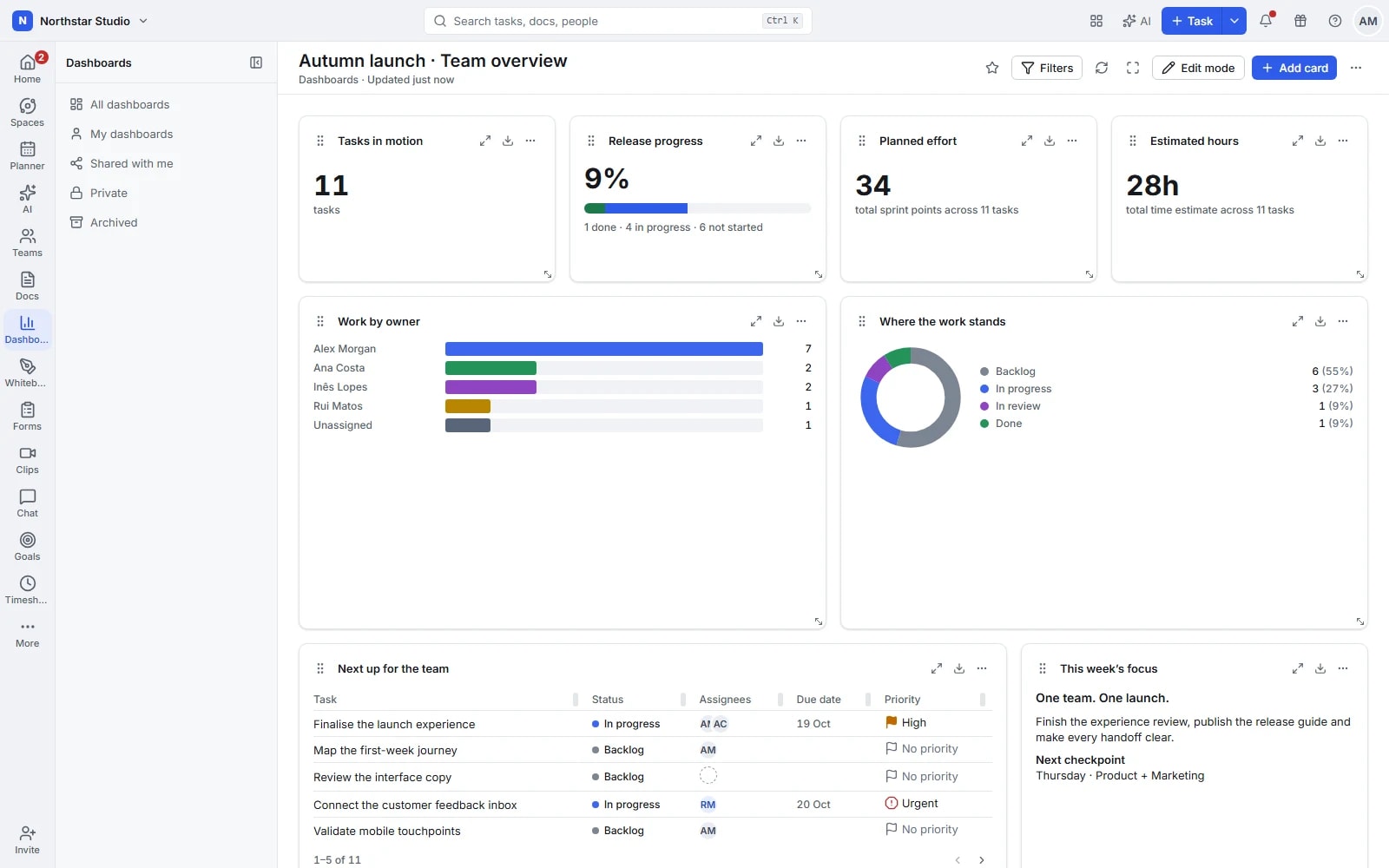
A working view of your team, not another weekly spreadsheet
Different conversations need different information. Build a project review around delivery, a team dashboard around capacity, or an operations view around incoming work. Each card brings a useful measure together with the work it describes.
The details your team can work with
- Build around the question
- Combine calculations, task lists, bar and pie charts, historical lines and progress cards. Add notes alongside the figures to explain decisions, definitions or the scope of a report.
- Keep the scope consistent
- Choose the spaces and lists each card covers. Dashboard filters narrow the shared view, while card filters answer more specific questions about owners, dates, priorities or fields.
- Move from a chart to the work
- Inspect the tasks behind supported chart segments. Compare workload with capacity, review tracked hours and follow sprint burndown, velocity, lead time or cycle time where relevant.
- Make reporting part of the routine
- Arrange and resize cards for the audience, manage access and use TV mode in a team review. Export supported cards or print a dashboard to PDF; scheduled reports depend on the plan.
Explore the details
- Card library and custom layouts
- Choose cards for the questions you need answered, arrange their order and resize them to give the important information enough space.
- Scope, filters and task drill down
- Choose source spaces or lists, combine dashboard and card filters and open the tasks behind compatible chart segments.
- Task counts and status progress
- Track open, completed or otherwise filtered work and use status progress cards to understand how delivery is moving through the process.
- Charts, custom fields and calculations
- Use bars, pies, historical series and supported calculations, including compatible custom fields, to compare the measures your team follows.
- Task tables and portfolio reporting
- Bring task lists and project portfolio information into the review, choosing the supported columns and scope appropriate to its audience.
- Capacity and workload cards
- Compare the team's assigned work and available capacity to identify uneven commitments before agreeing to take on more work.
- Time, billable work and approvals
- Review recorded effort, billable entries and available approval information alongside the tasks and people responsible for the delivery.
- Goals and target progress
- Show goal progress in the dashboard so the team can discuss daily delivery against the results it agreed to achieve.
- Sprint burndown, burnup and velocity
- Use sprint cards to compare remaining work, changes in scope and completed effort with the initial forecast and earlier cycles.
- Cycle time, lead time and cumulative flow
- Examine supported delivery measures and cumulative flow to understand how work moves through the team's process over time.
- Notes, embeds and optional AI summaries
- Add explanatory notes and embedded references; when AI is enabled and configured, request a summary and check the underlying information.
- Access, public links and protection
- Choose who can access a dashboard, protect its configuration and use a public link when the workspace permits that form of sharing.
- CSV, image and PDF exports
- Export compatible cards as data or images and print or save a dashboard as PDF when the review needs to travel.
- Scheduled email reports
- Configure recurring dashboard reports for the intended recipients when scheduled reporting is included in the workspace's current plan.
Start with a decision worth making
Keep each dashboard focused enough to use in a real conversation, with details available when the team needs them.
Pick a starting point
Use a project, time or sprint template, or start with an empty dashboard and a clear question.
Choose the evidence
Add cards, select their locations and measures, then set filters that make the comparison meaningful.
Review and act
Discuss the trends, inspect the underlying tasks and adjust ownership or priorities in the work itself.
A practical example: a delivery review
An operations lead puts overdue tasks beside open work per person and time tracked this week. When one area needs attention, the team opens the relevant tasks and agrees the next step with their owners.
An example you can adapt to your own team.
Questions about Dashboards
Can one dashboard cover several projects?
Yes. Cards can use work from different spaces and lists. Set their scope deliberately, then use dashboard filters to narrow the review.
Can I share a report outside the dashboard?
You can print or save the dashboard as PDF and export supported cards. Access controls and scheduled reporting options depend on the feature and plan in use.
Make space for the work that matters.
Bring your next project into Talqivo. Start with a task, invite your team and build from there.
Get started free