See the same work from the angle you need
Move between a task list, a board, a calendar or a project schedule. Each view answers a different question using the same work.
Get started free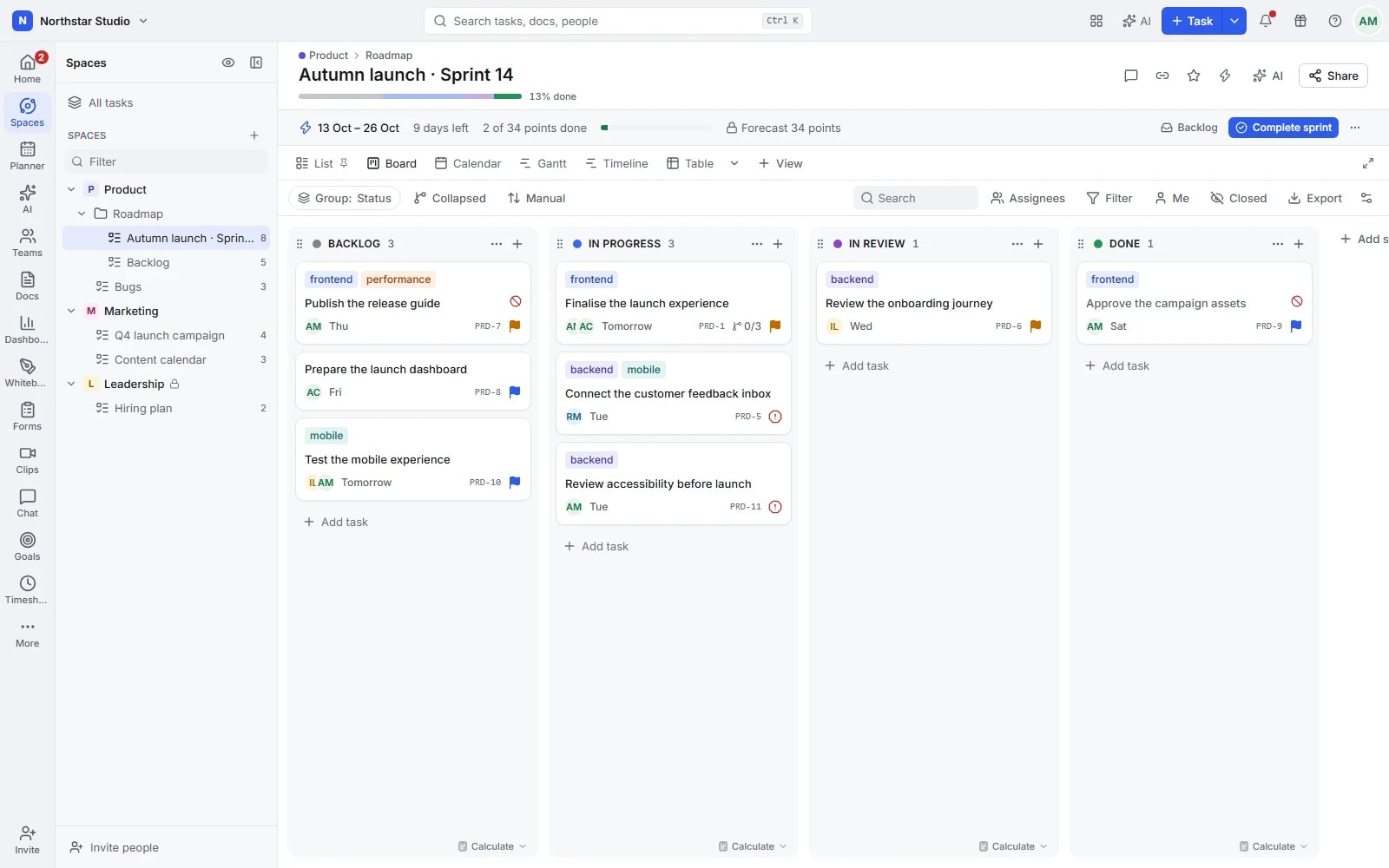
One project can need more than one picture
A designer needs to see today's assignments. A project lead needs the sequence of deliveries. A team lead needs to know who has room for another task. Talqivo lets you create several views of the same work, with filters, grouping and sorting that make each one useful for its audience.
The details your team can work with
- Work through the details
- Use List for an ordered task overview and Table for comparing fields across tasks. Choose the columns and grouping that help the team review priorities and make updates.
- Follow progress and dates
- Board makes status changes easy to read, while Calendar puts scheduled work in context. Switch perspective when the question changes from what is happening to when it needs to happen.
- Plan the sequence
- Use Gantt to inspect task spans, dependencies and the critical path. Timeline lays work out over time, including by assignee, so overlapping commitments are easier to spot.
- Match commitments to capacity
- Workload compares assigned work with people's available capacity. Keep a personal view for your own planning, share a view with colleagues or protect a shared setup from accidental edits.
Explore the details
- List and Table
- Use List for a working task queue and Table to compare fields, choose columns and update details across the same work.
- Board, swimlanes and WIP limits
- Move tasks between Board columns, organise swimlanes and set work in progress limits to make crowded stages easier to spot.
- Calendar and connected events
- Review dated tasks in Calendar and display your connected Google or Outlook events alongside them, subject to connection permissions.
- Gantt, dependencies and baselines
- Inspect task durations, dependency arrows and the critical path, and compare the schedule with a saved baseline when needed.
- Timeline and planning lanes
- Place work along a Timeline and use lanes to compare overlapping commitments across the people or groupings relevant to your plan.
- Workload and capacity
- Compare assigned work with available capacity, choosing an effort measure and accounting for the working schedule used by the team.
- Activity and Team views
- Read recent changes in Activity or review work by person in Team view to prepare a more focused conversation.
- Mind Map and geographic Map
- Explore task relationships in a Mind Map or place work geographically in Map when the required location data is available.
- Overview and Embed
- Bring a location's useful context into Overview or add an Embed view for a supported external page beside the project.
- Documents, Forms, Whiteboards, Dashboards and Chat tabs
- Keep documents, forms, whiteboards, dashboards and chat in location tabs, using the content types available for that location.
- Search and combined filters
- Search within the work and combine filter groups to focus on the dates, owners, statuses or fields relevant to a decision.
- Grouping, sorting, columns and totals
- Choose useful groupings and sort rules, show the columns people need and review supported totals without rebuilding the task data.
- Me mode and subtask visibility
- Focus on your own work with Me mode and choose how subtasks appear in the views that support them.
- View exports and presentation
- Export supported view data or use the available presentation controls when the work needs to be reviewed outside its usual layout.
Give every meeting a useful starting point
Create views around recurring decisions: a daily check-in, a delivery review or a conversation about capacity.
Choose the question
Pick the work location and a view type. Start with what you need to decide, rather than displaying every field.
Bring the right work into focus
Filter by the details that matter, group related tasks and sort them into a useful order. Save the configuration for next time.
Use and share the result
Keep the view personal or share it with the team. Open a task to act on it, or export task data to CSV.
A campaign seen by three teams
Marketing follows a Board grouped by status, the content team works from a Calendar and the launch lead checks dependencies in Gantt. An updated due date belongs to the same task in every view, so the team does not maintain three separate project plans.
An example you can adapt to your own team.
Questions about Views
Does changing a task in one view update it elsewhere?
Yes. Views display the underlying tasks. A change to a task's status, dates or assignees is reflected wherever that task appears, subject to the filters and access rules of each view.
Will my filters change what everyone else sees?
Personal view adjustments let you explore the work without disturbing colleagues. Save changes for the shared view when that is the intention, and use protected views to preserve an agreed setup.
Make space for the work that matters.
Bring your next project into Talqivo. Start with a task, invite your team and build from there.
Get started free